🧭 How to Use the PDF Viewer
Open a PDF
From your Course Page, open any Notes, Slides, or Question Bank.
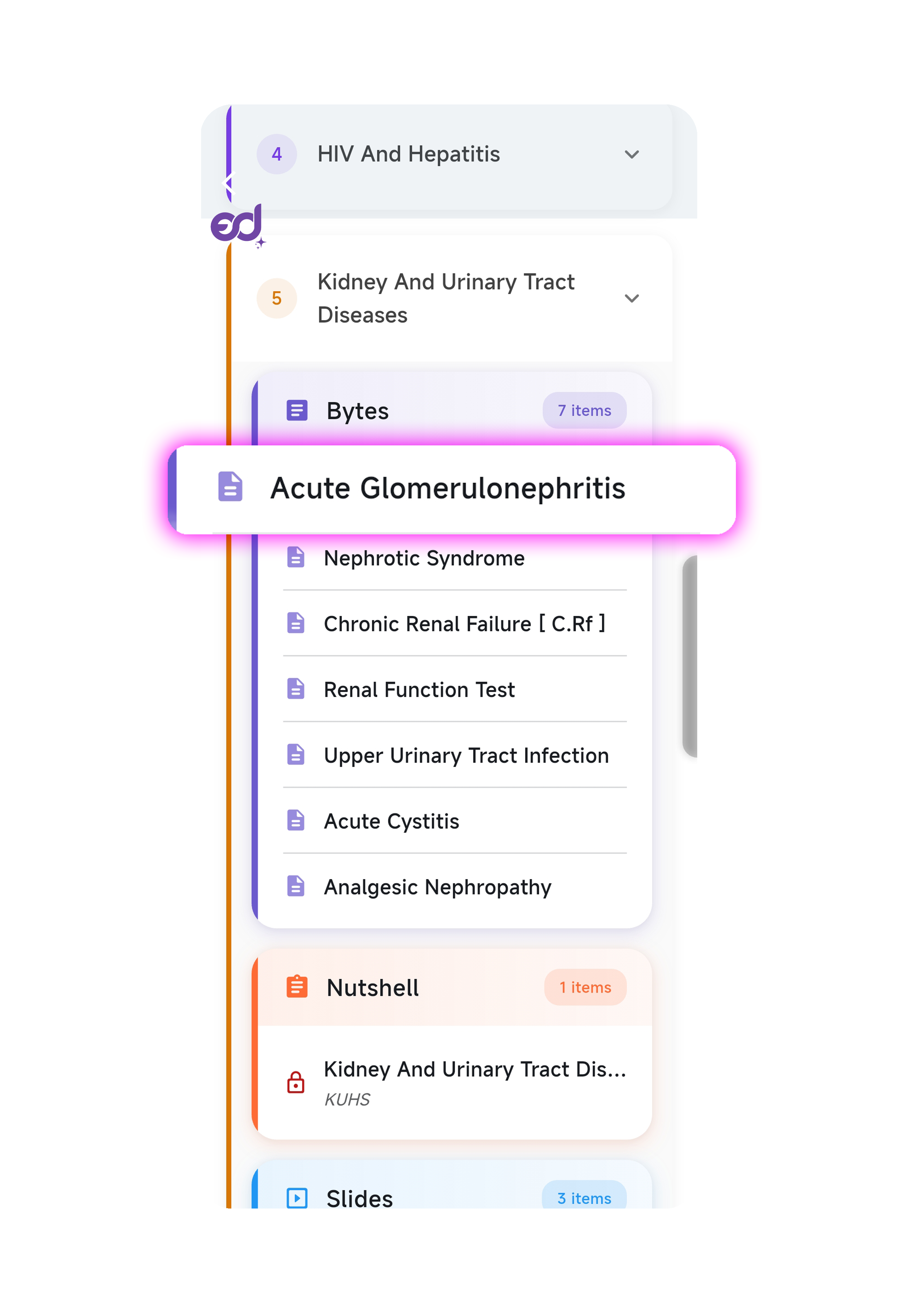
Selecting a topic from Course Page
Orientation
If your phone's auto-rotation is on, the viewer switches between portrait/landscape automatically.
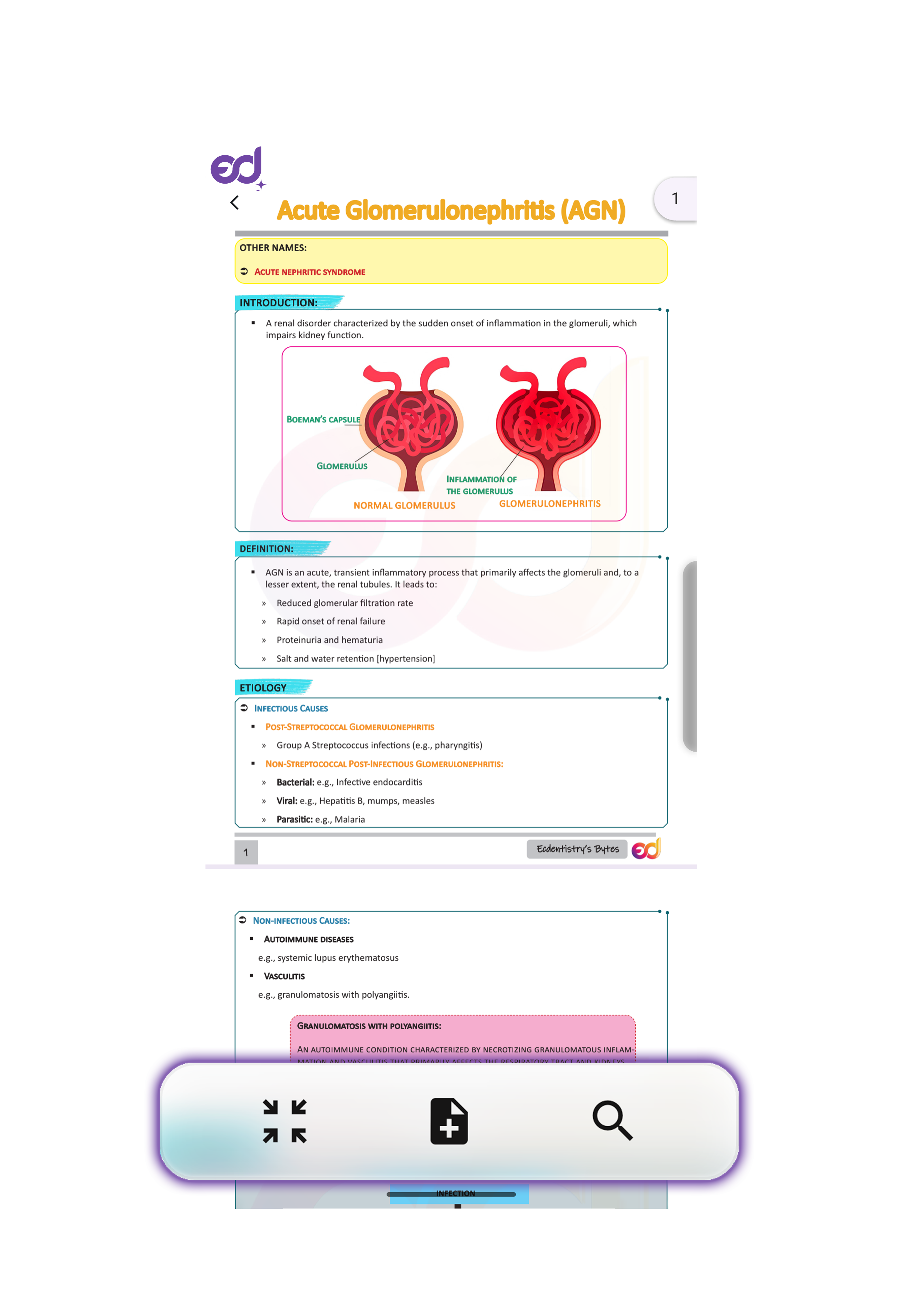
PDF Viewer Interface
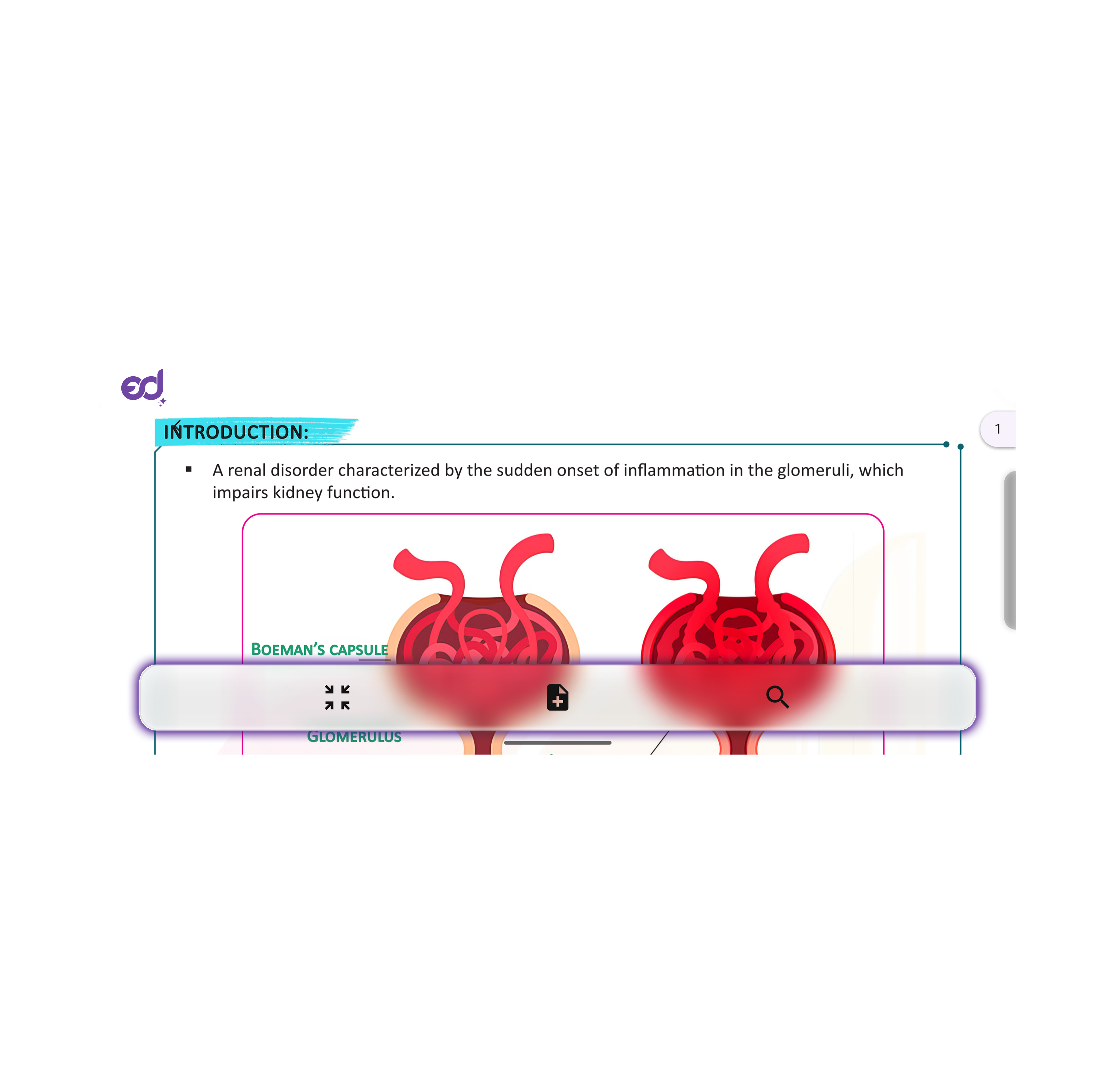
Auto-rotation Enabled
Zoom
Tap Quick Zoom on the toolbar to zoom in instantly. Drag to pan around the page as needed.
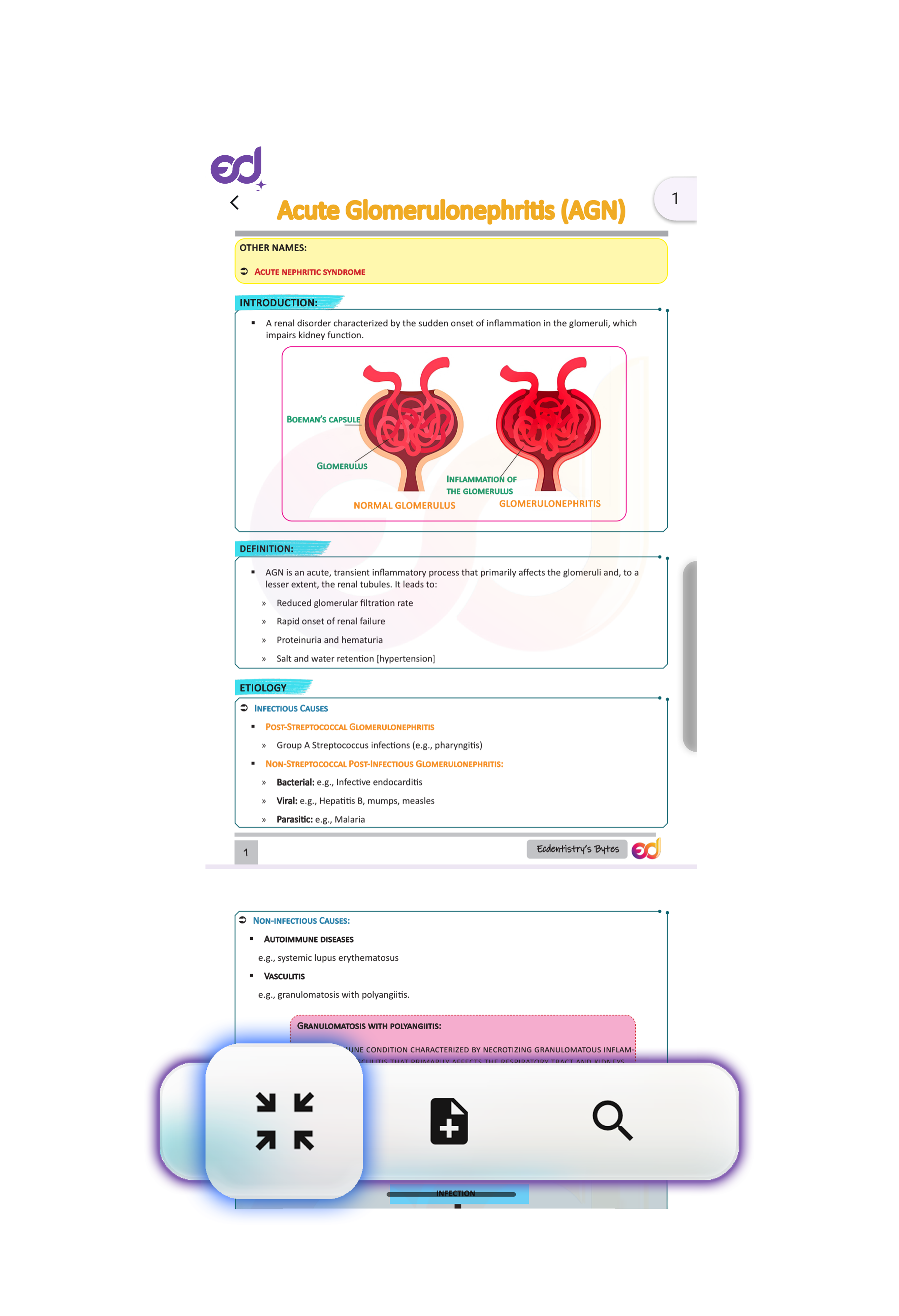
Quick Zoom Option
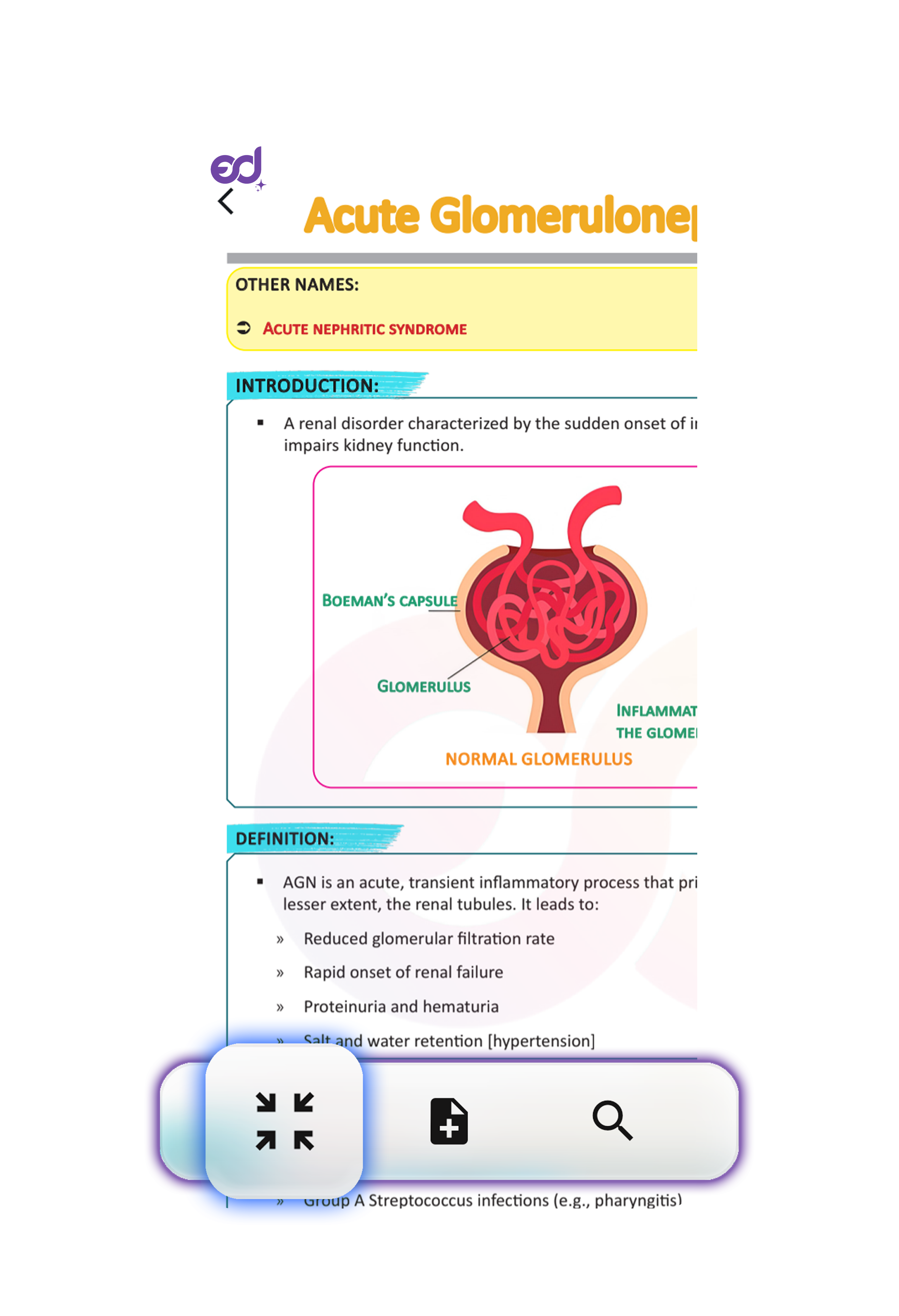
Zoomed View
Annotate & Markup
Add sticky notes and text markups to enhance your study materials.
Sticky Note
Tap on the "+" button → tap the screen at the spot where you'd like to position the Sticky Note → type in Sticky Note Text → Save. Press-and-hold to drag and place the note anywhere.
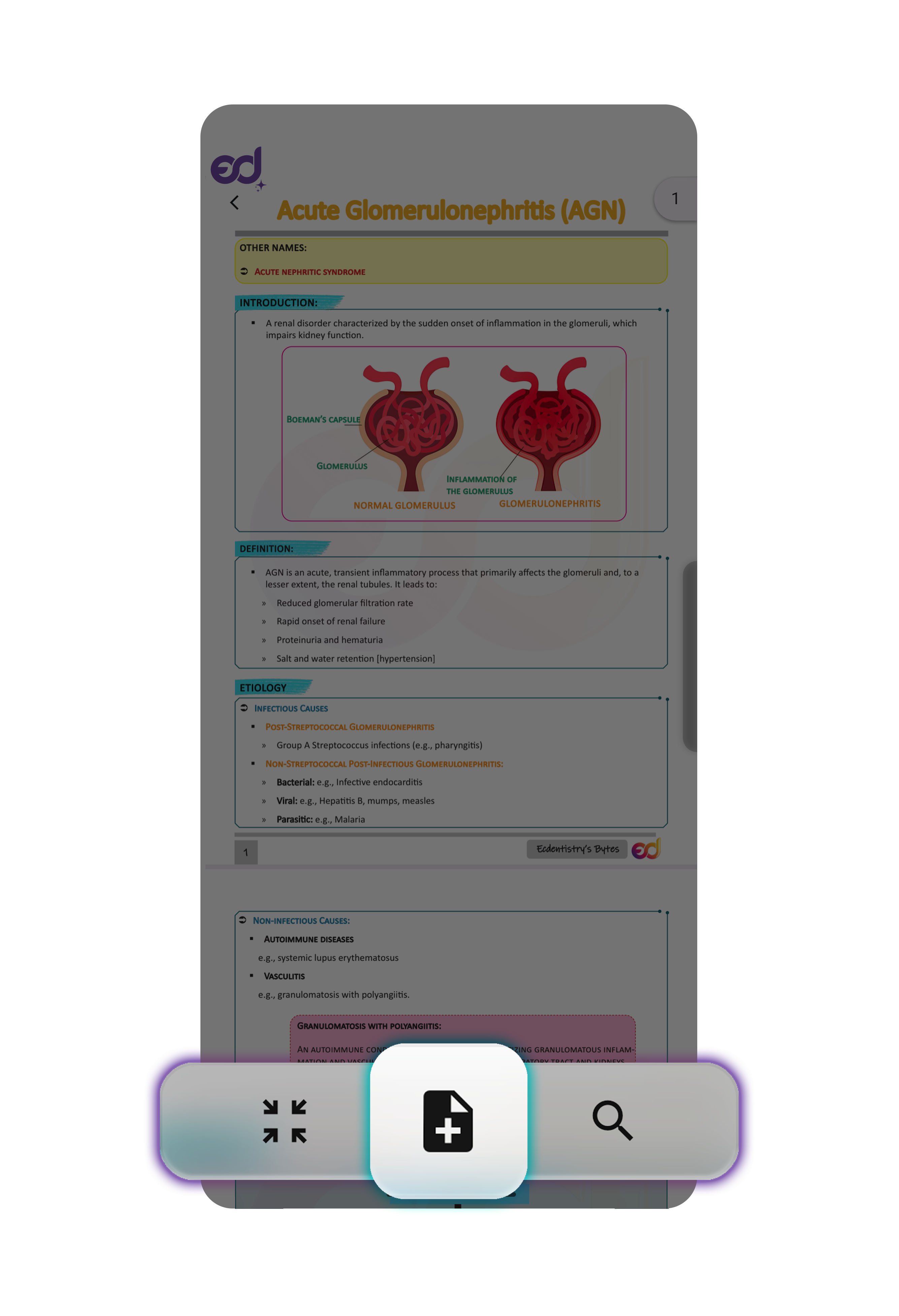
Annotation Tool
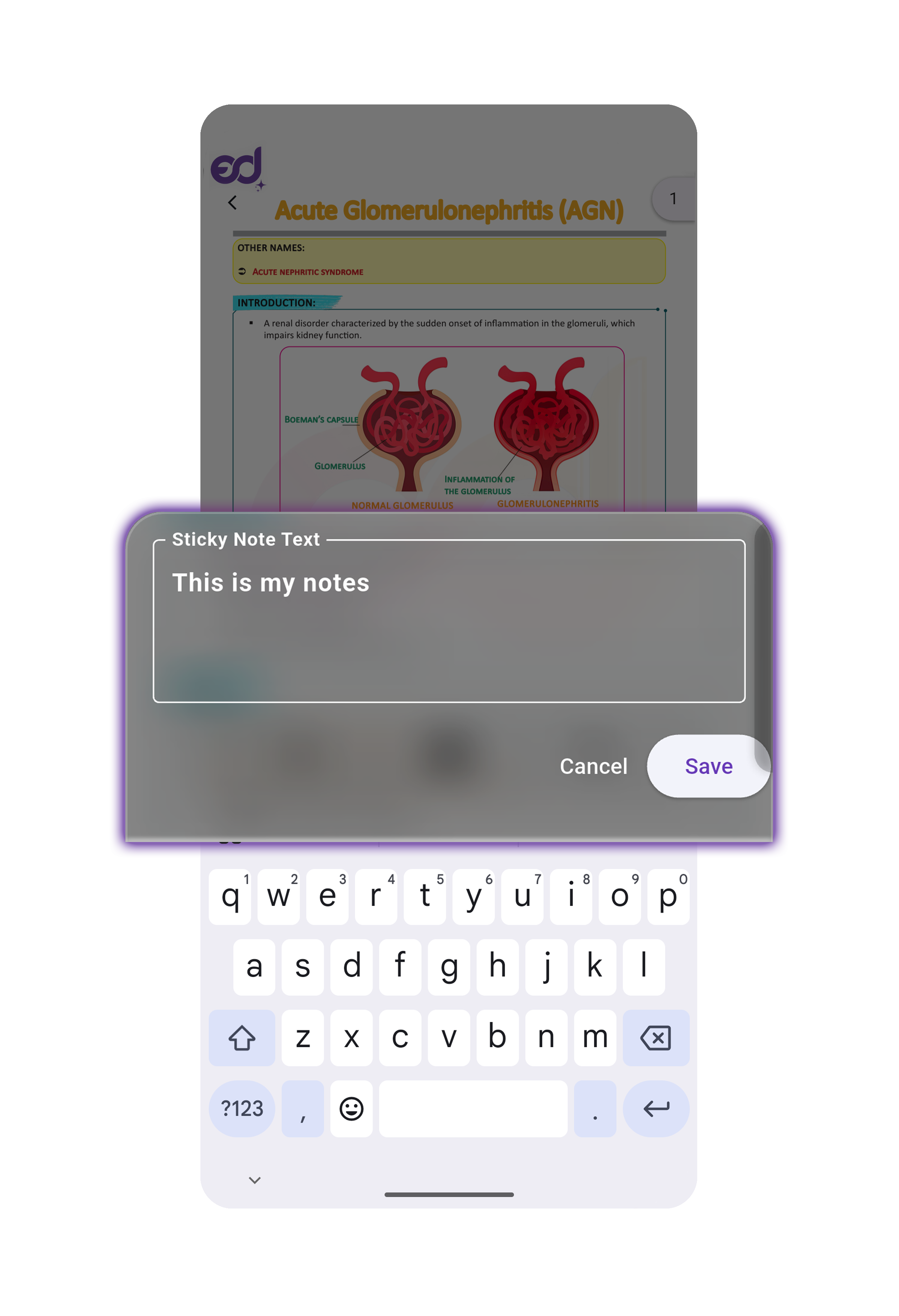
Adding Sticky Note
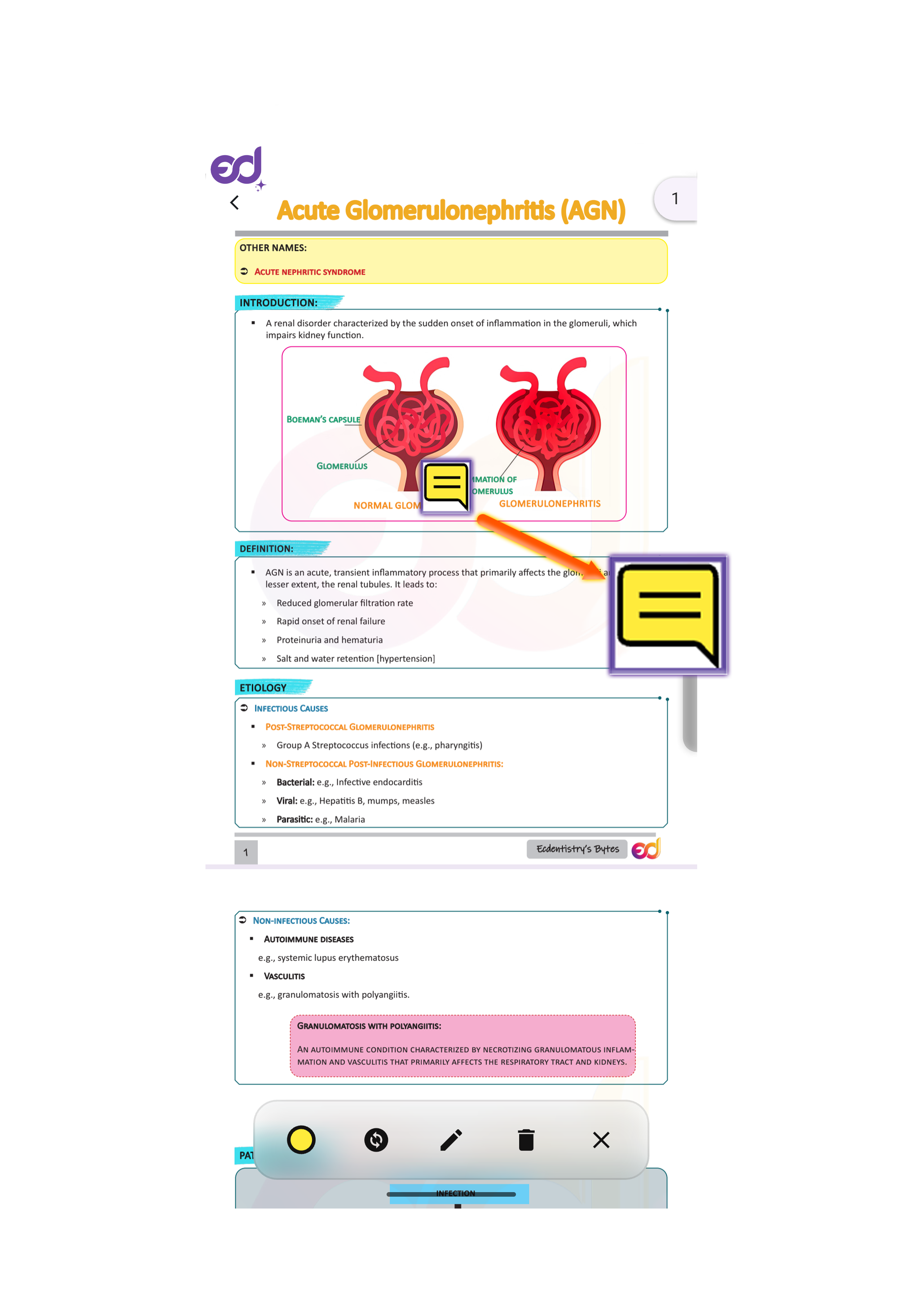
Moving Sticky Note
Re-edit Sticky Note
To re-edit a sticky note, simply tap on it and then tap the "Edit" button—this will bring up the text box for editing.
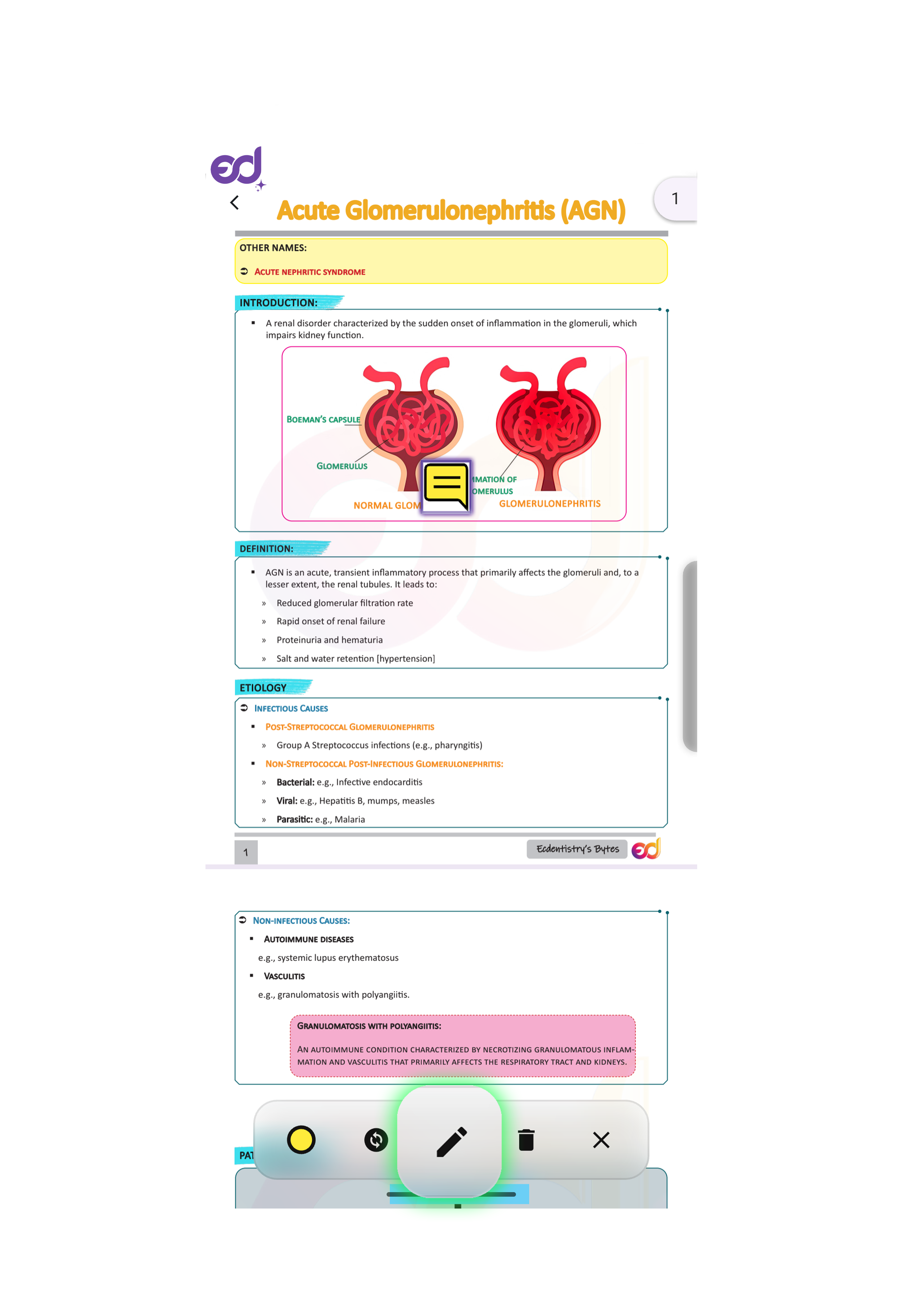
Sticky Note Edit Button
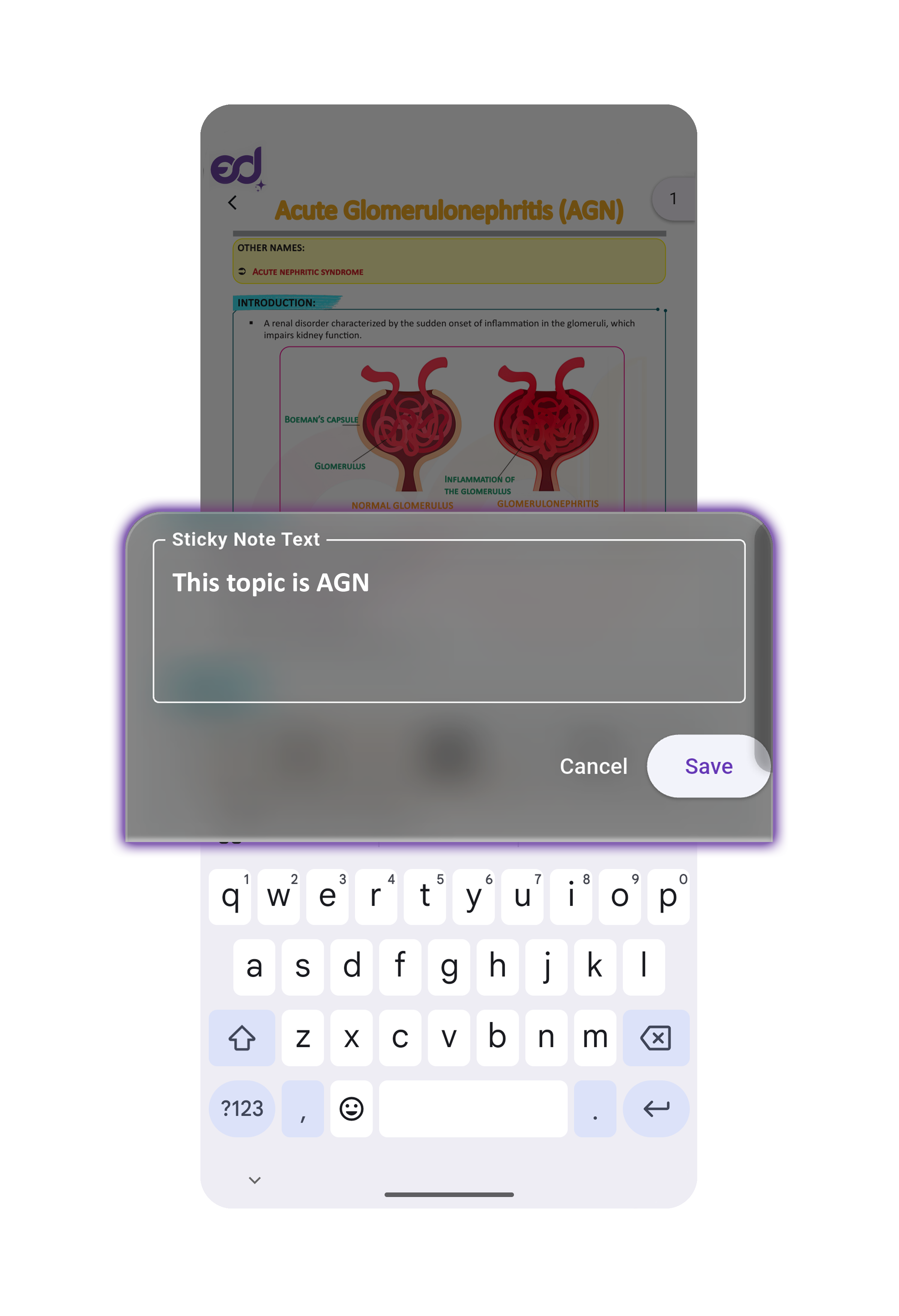
Sticky Note Re-edit
Alternatively, double-tap the sticky note to open a full-screen pop-up window where you can make your changes.
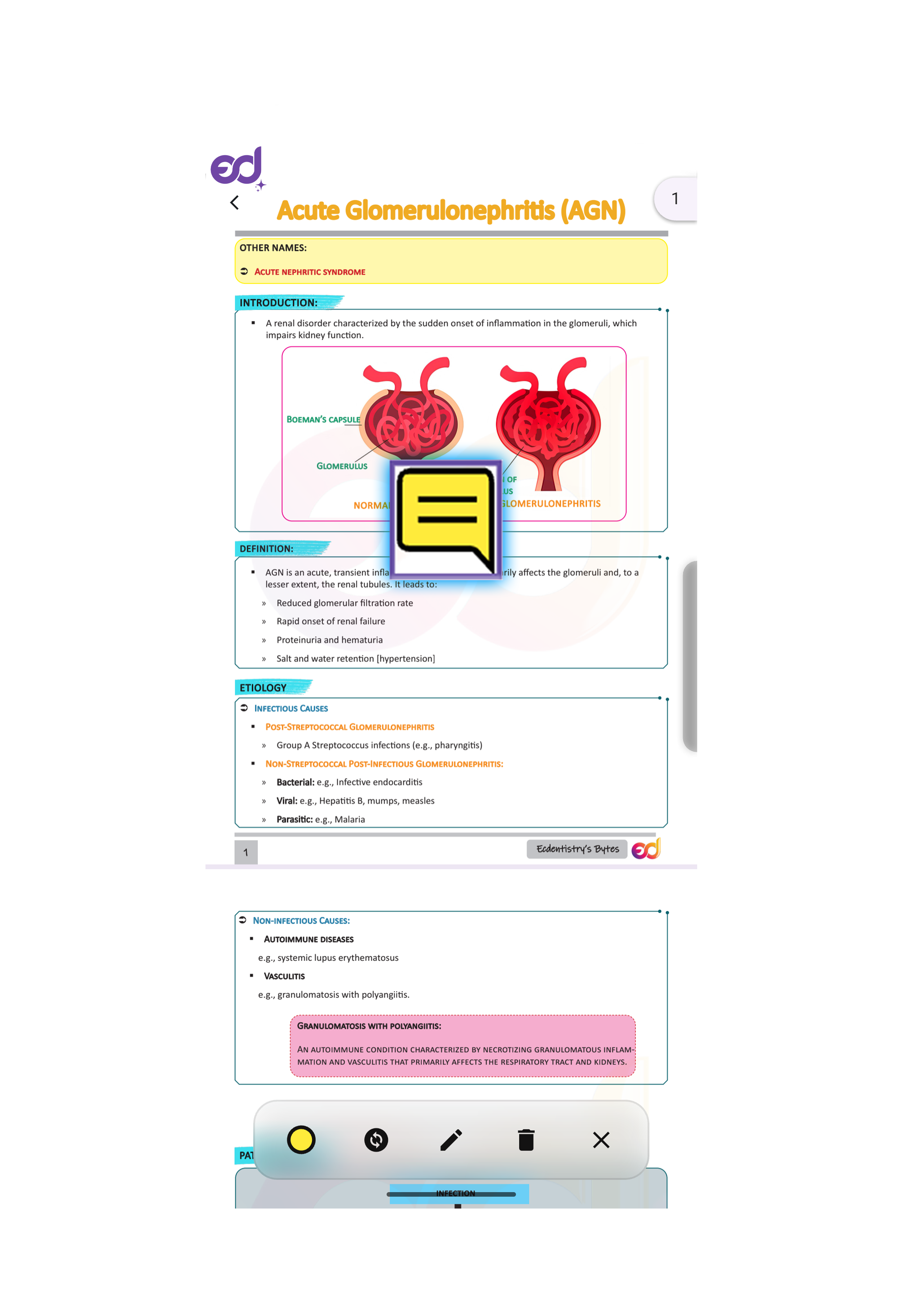
Double Tap Sticky Note
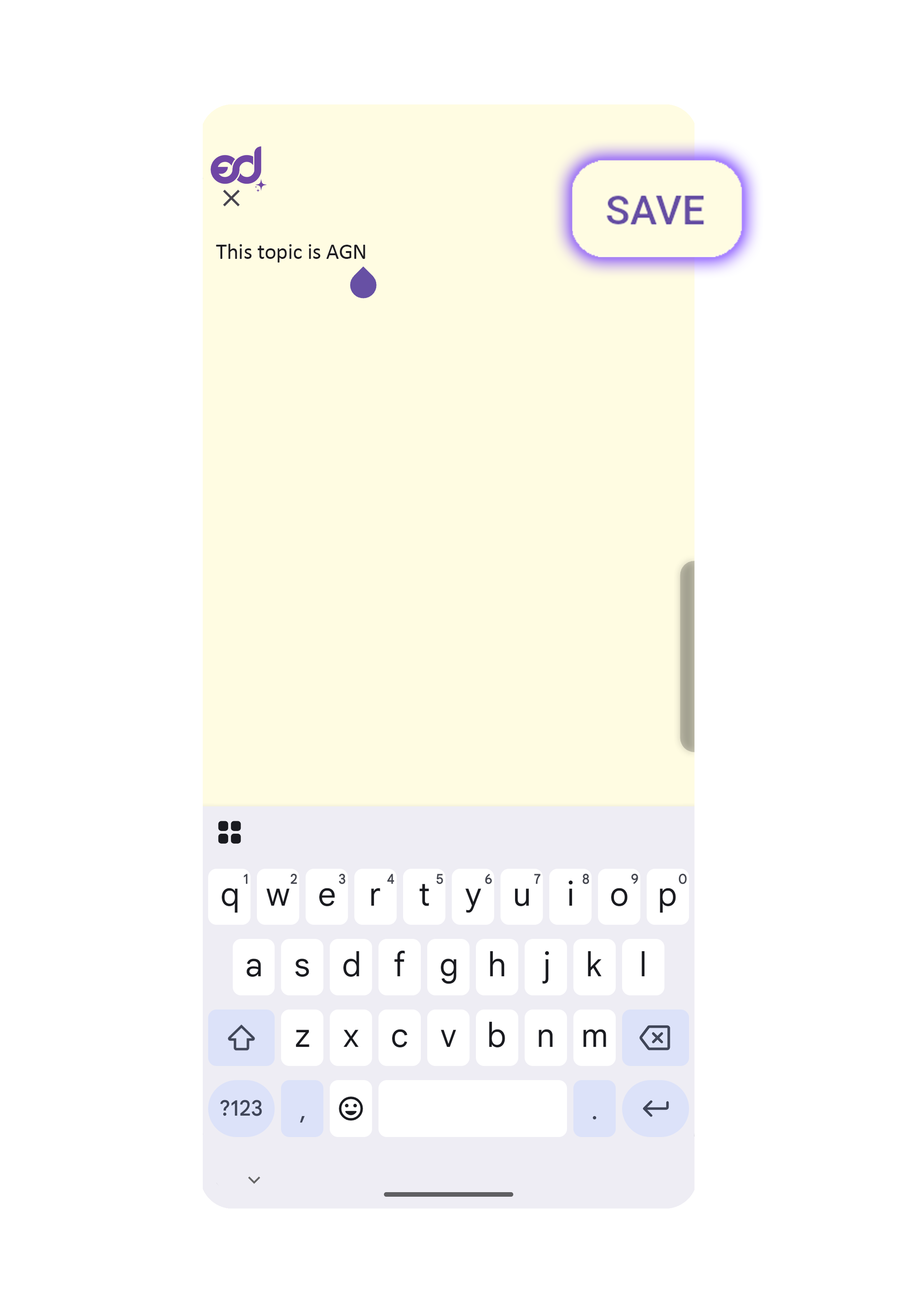
Sticky Note Re-edit Type
Change Sticky Note Color
With the note selected, use the toolbar to Change Color or Change Icon.
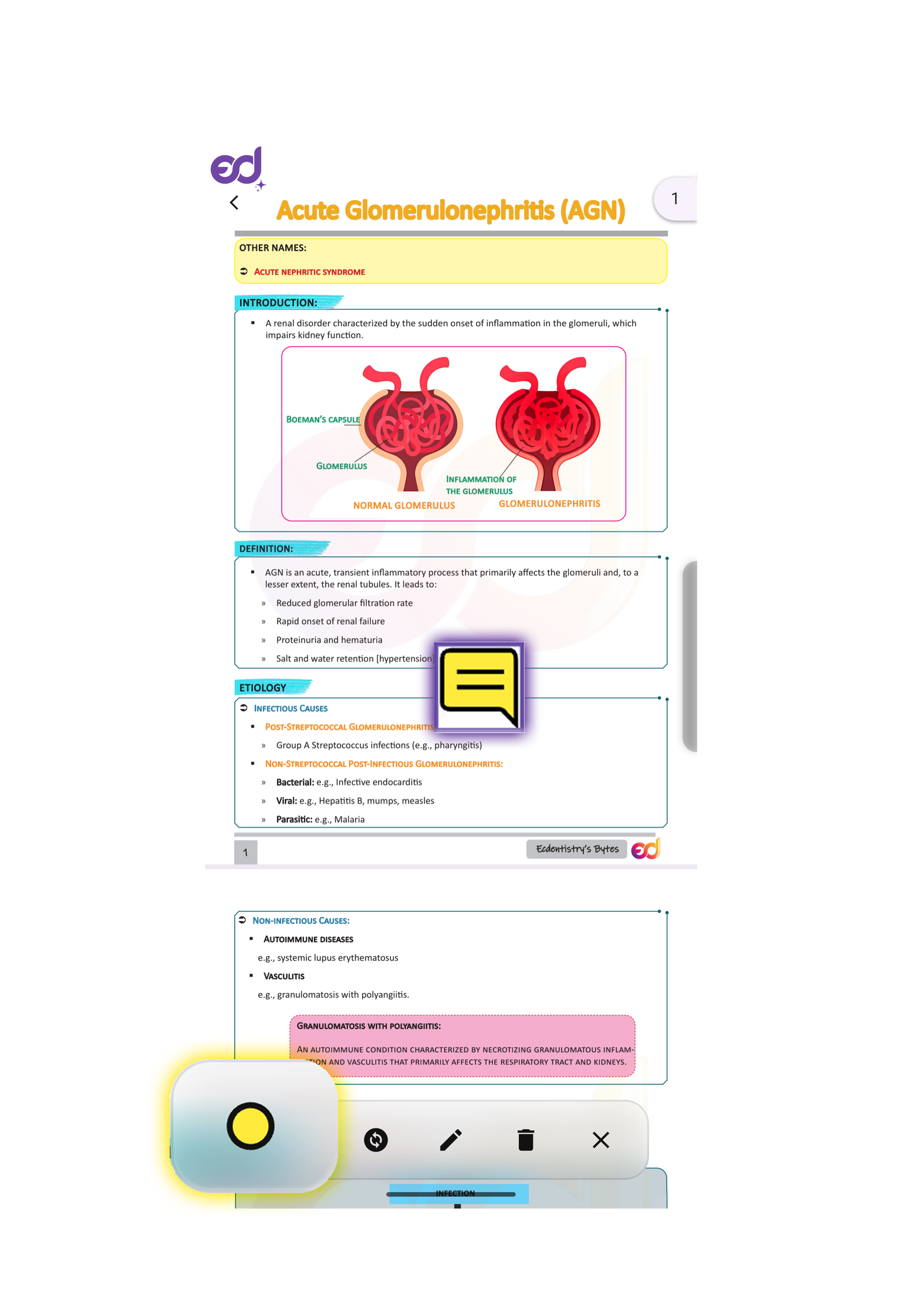
Color Change Option
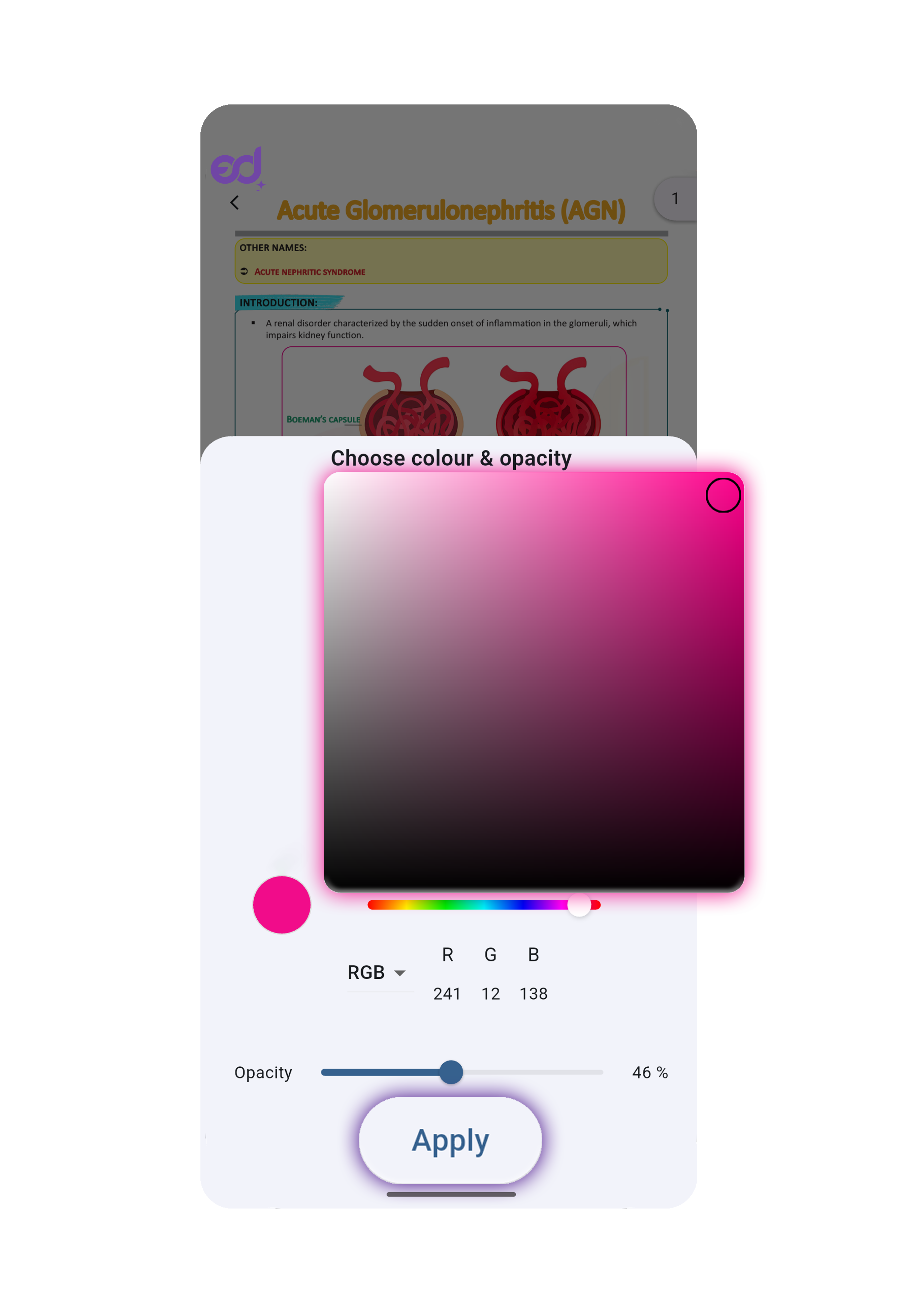
Color Changed
Change a Sticky Note's Icon
Select the sticky note and tap Change Icon. Pick your desired icon and confirm to apply.
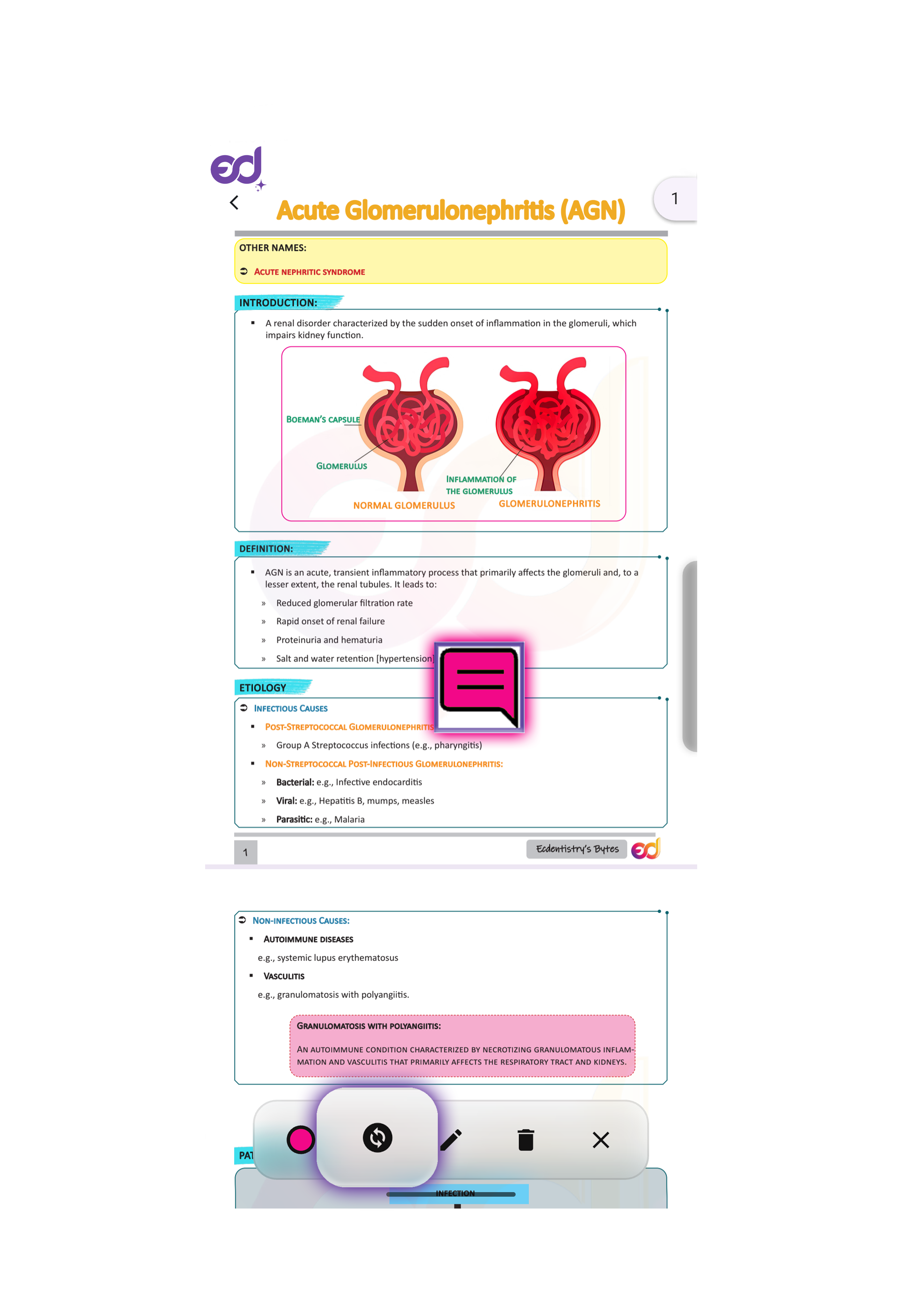
Icon Change Option
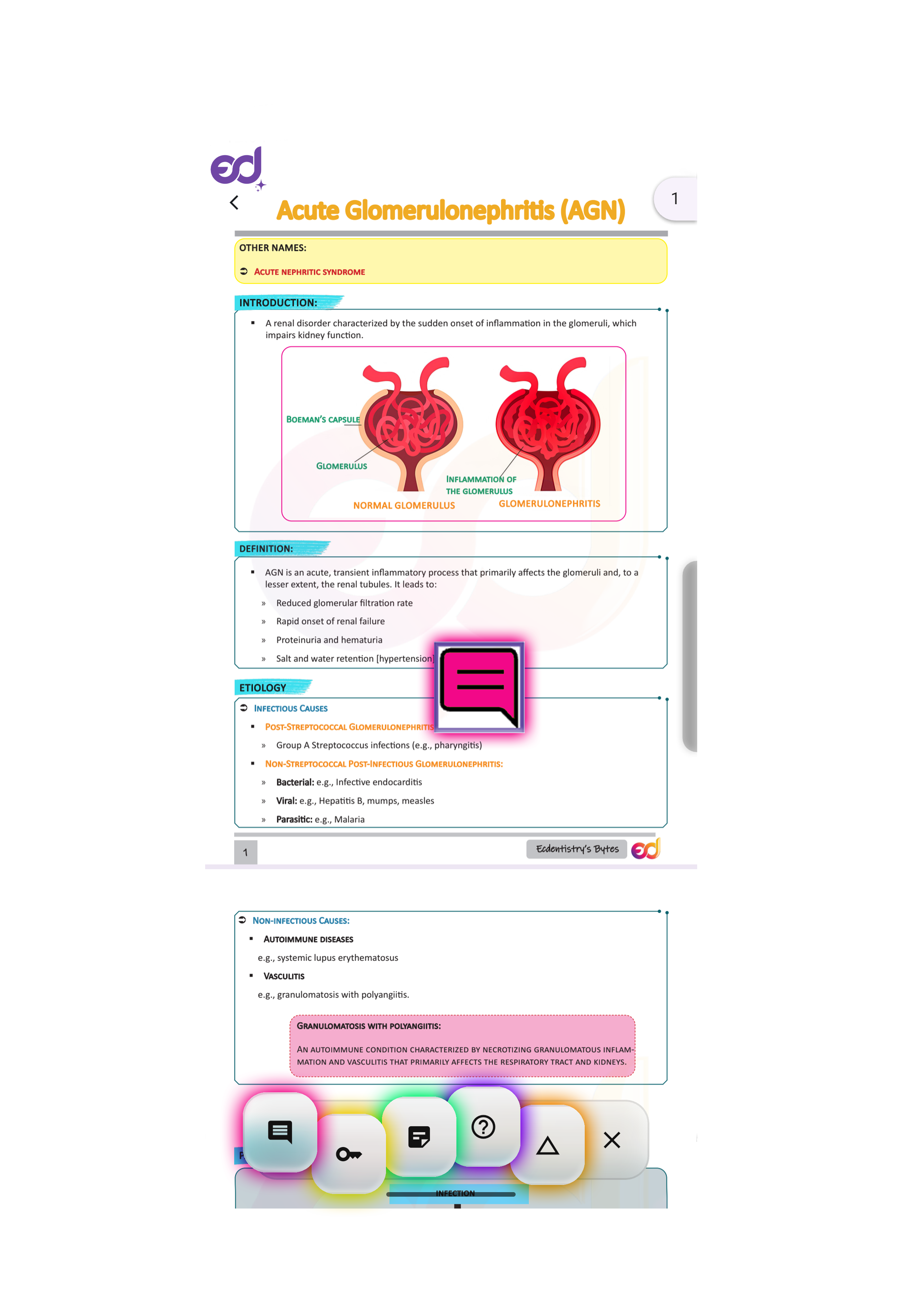
Available Icons
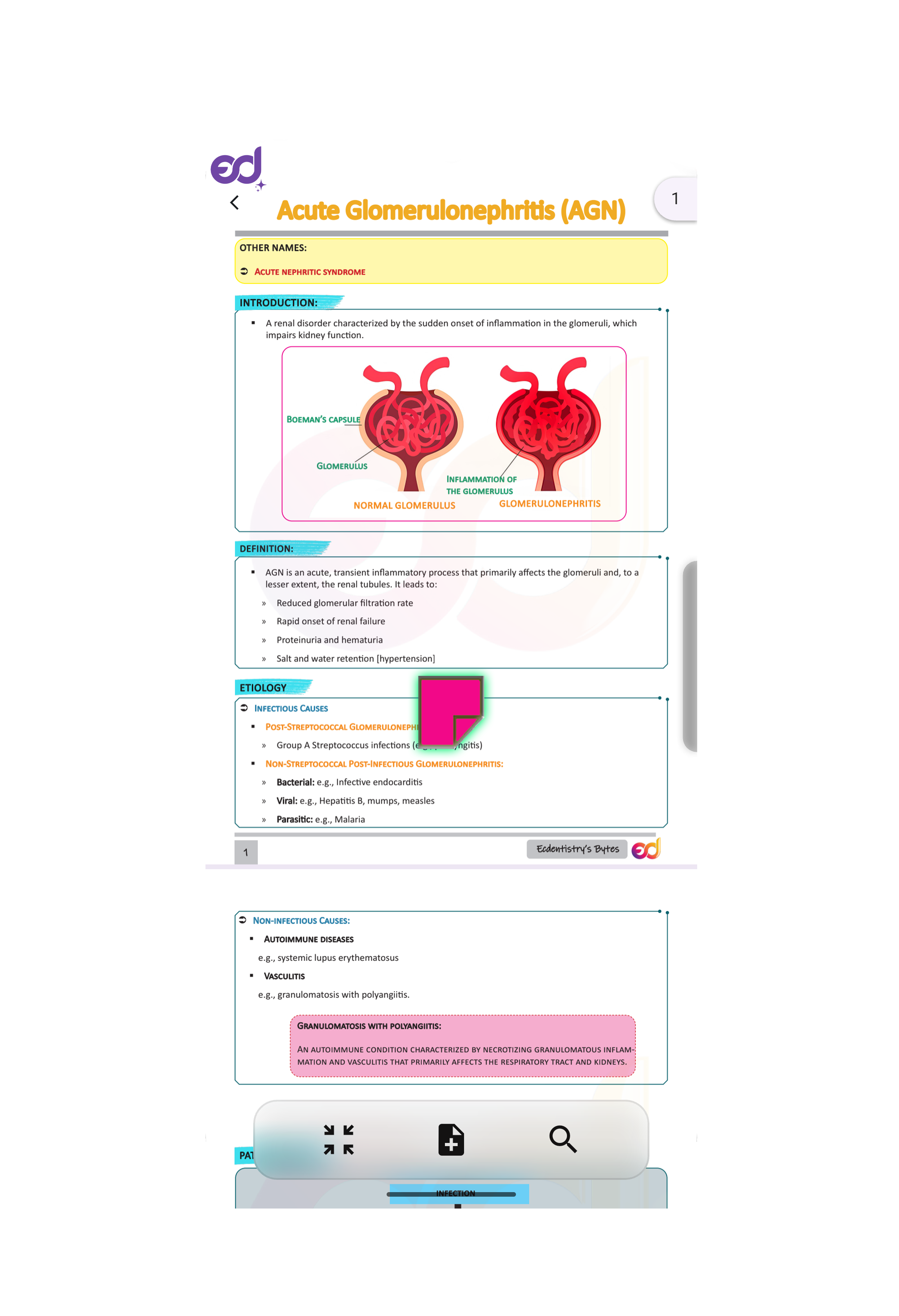
Icon Changed
Text Markup
Press-and-hold on text, then drag to select the range. Choose Highlight, Underline, Strike-through, or Squiggly.
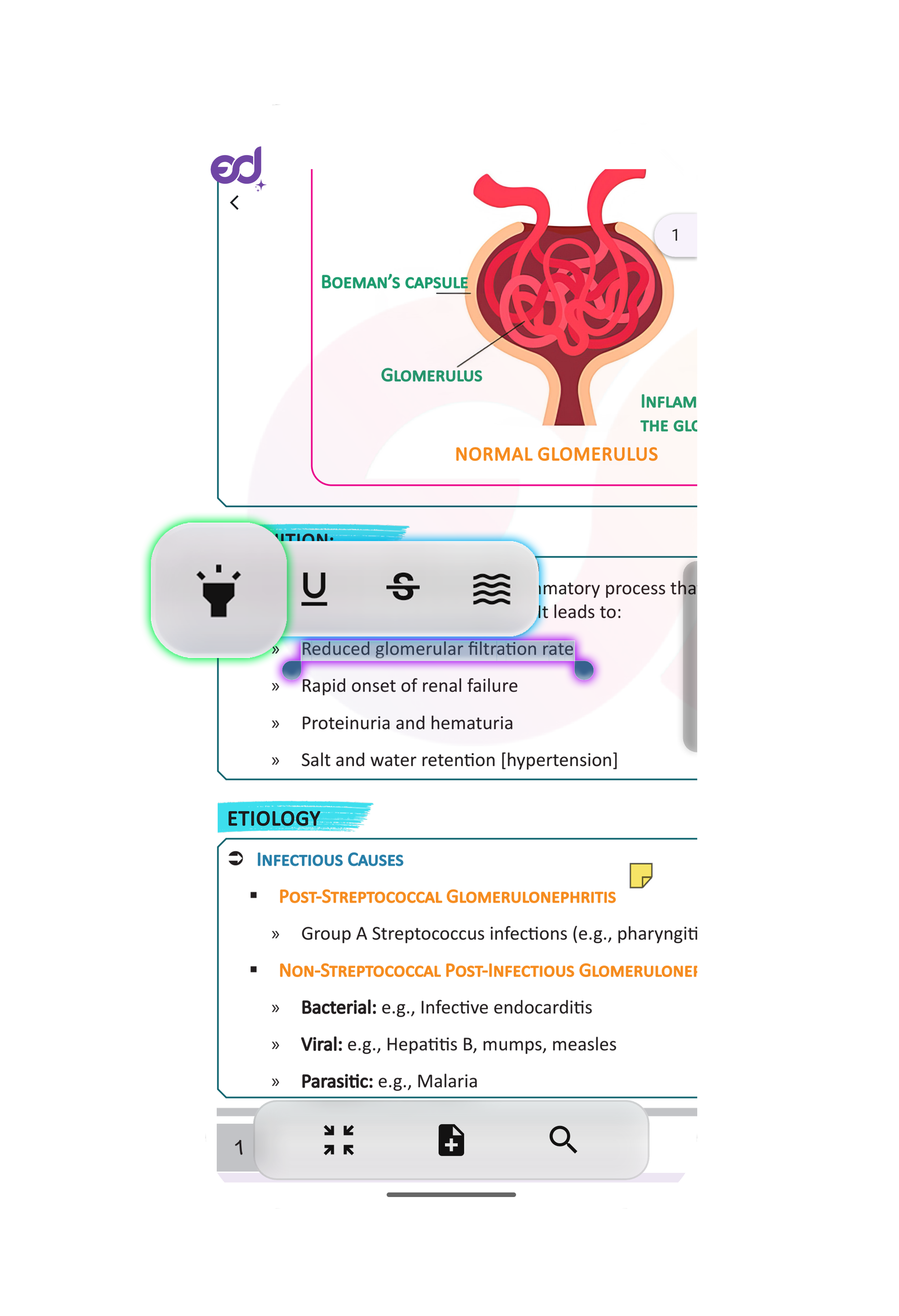
Mark Option
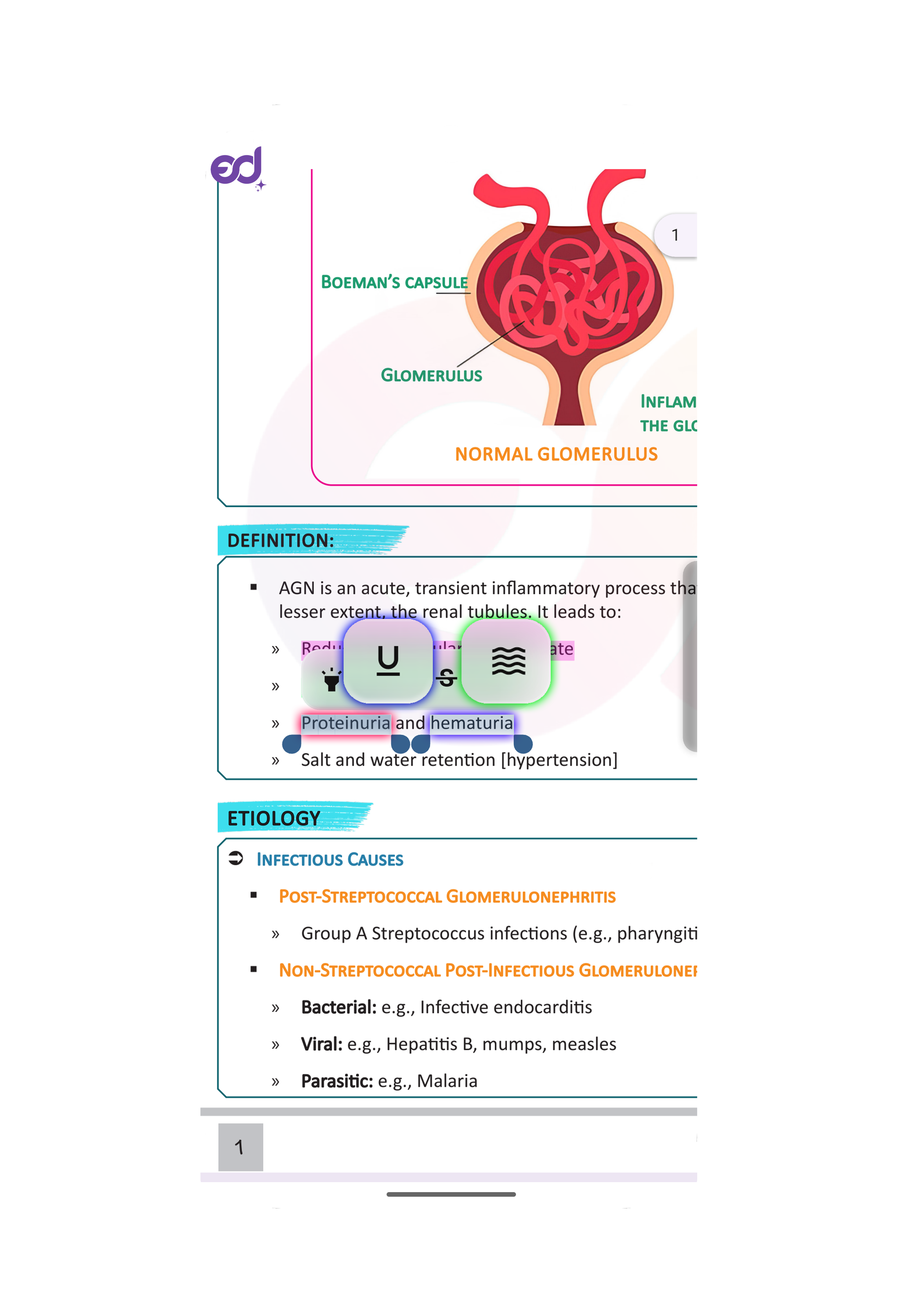
Underline & Squiggly Options
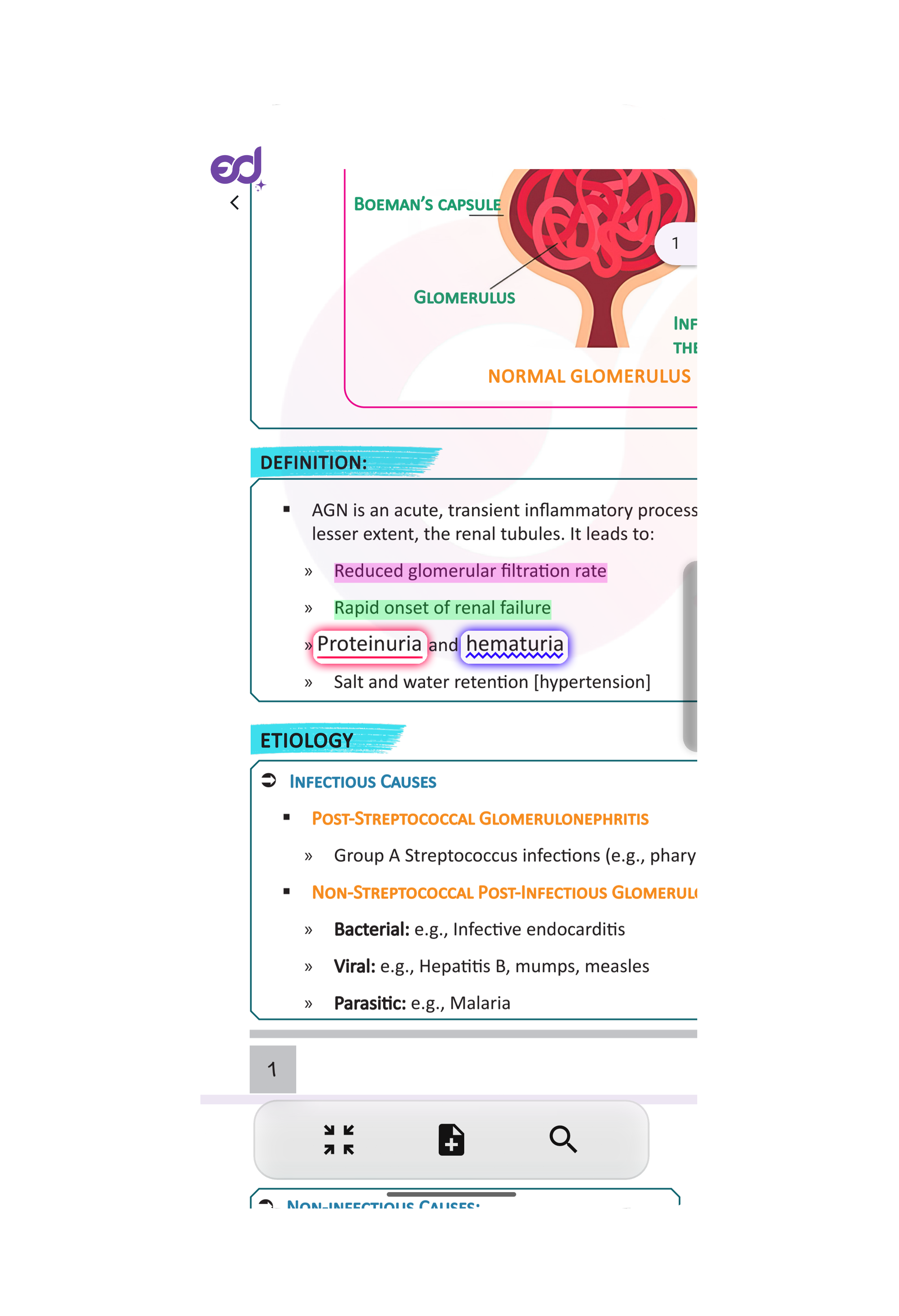
Text Marked
Change Markup Color
Tap a markup to change its color from the toolbar.
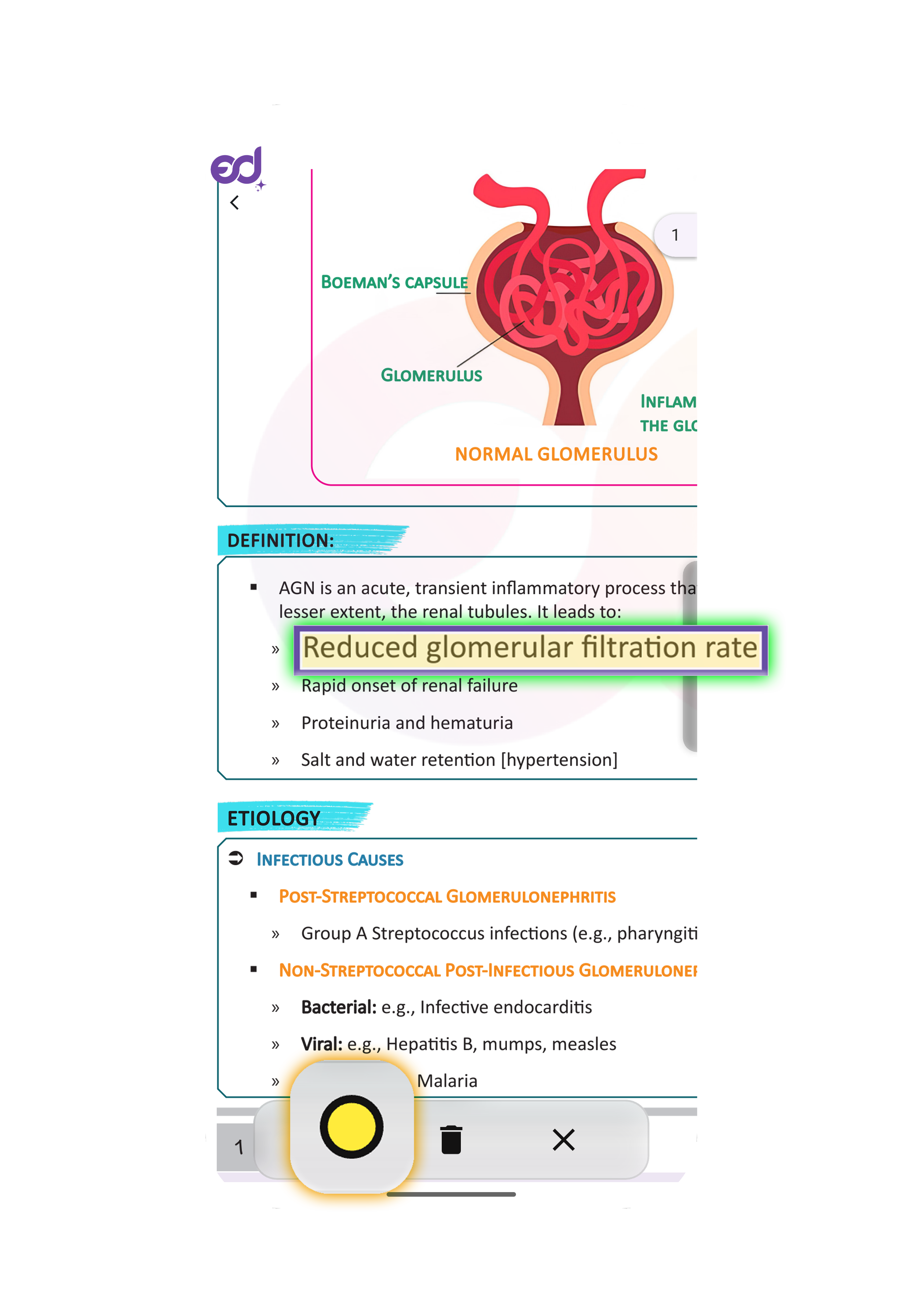
Change Color Option
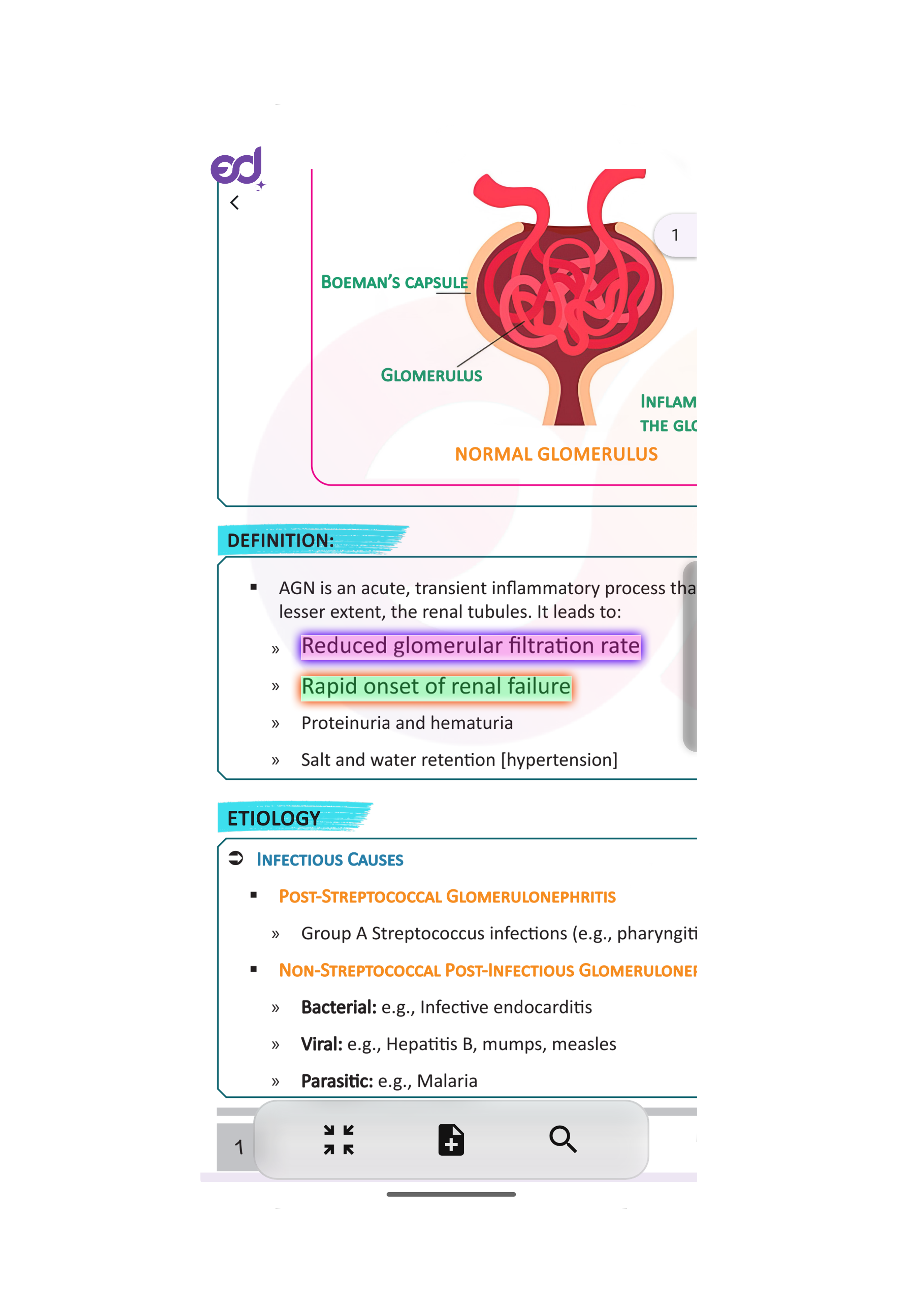
Color Changed
Delete Annotations
Tap any note/markup → choose Delete → confirm in the popup.
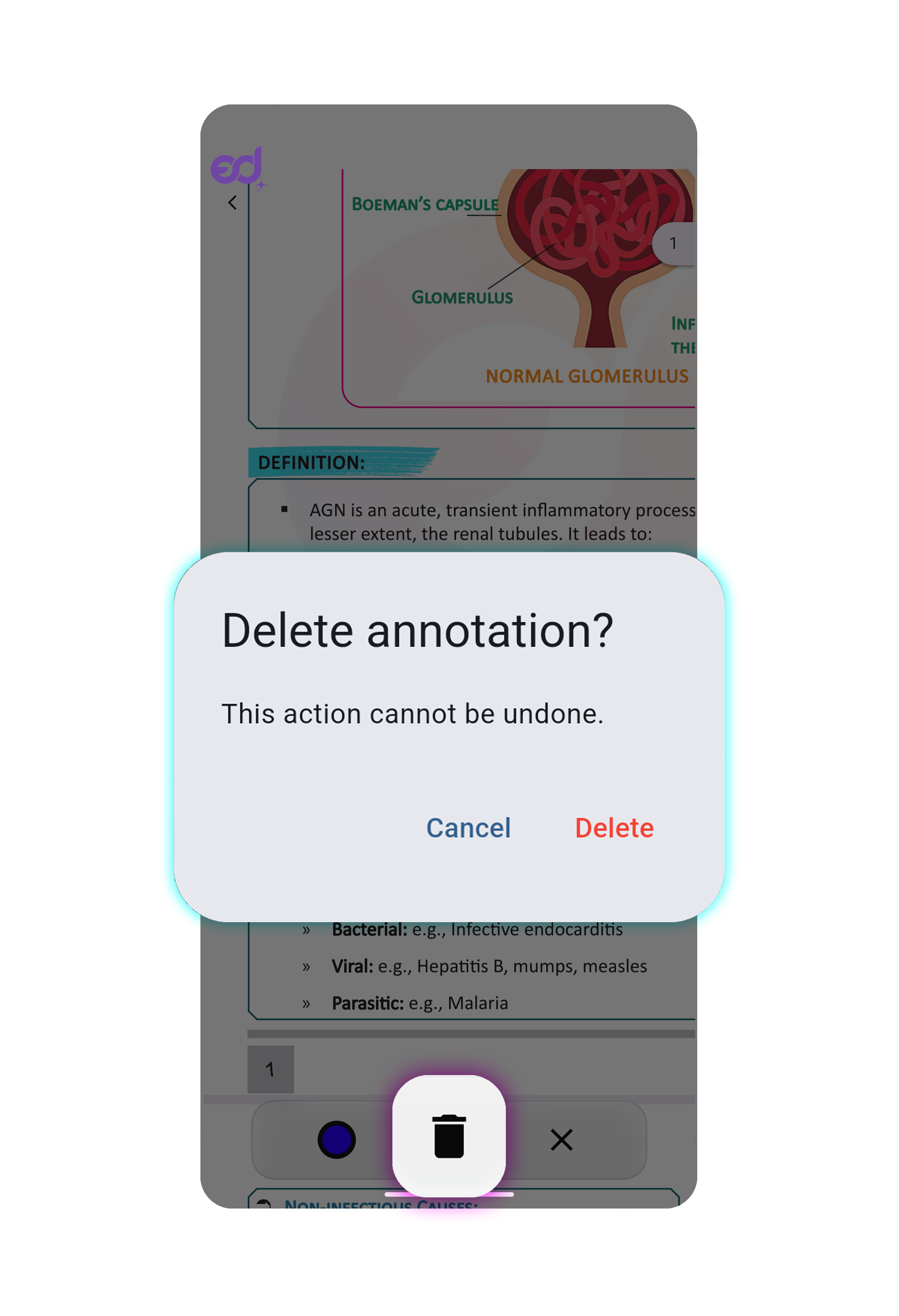
Delete Annotation
Search Within PDF
Tap the Search icon on the toolbar. Enter a term, and matches will be highlighted.
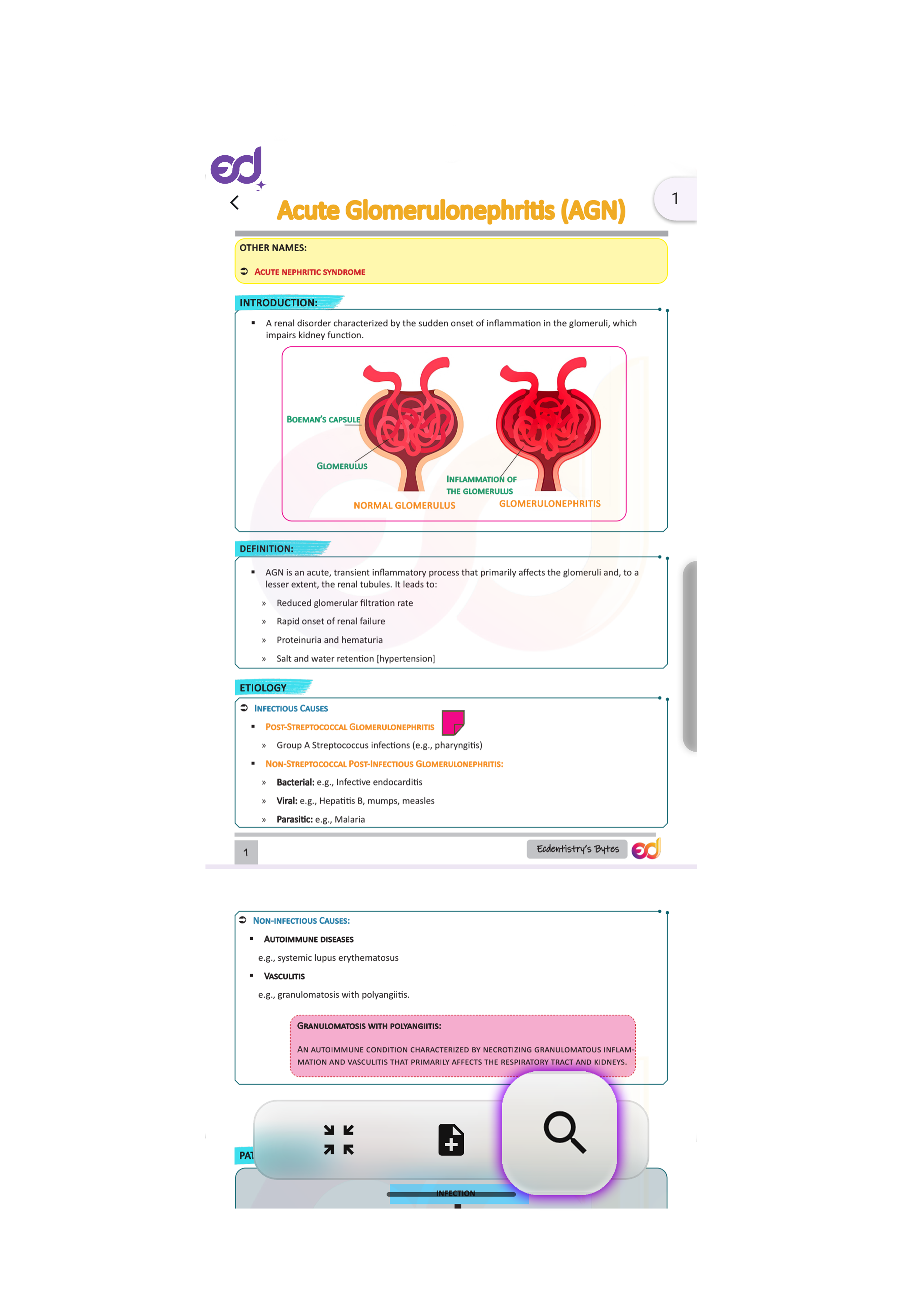
Search Option
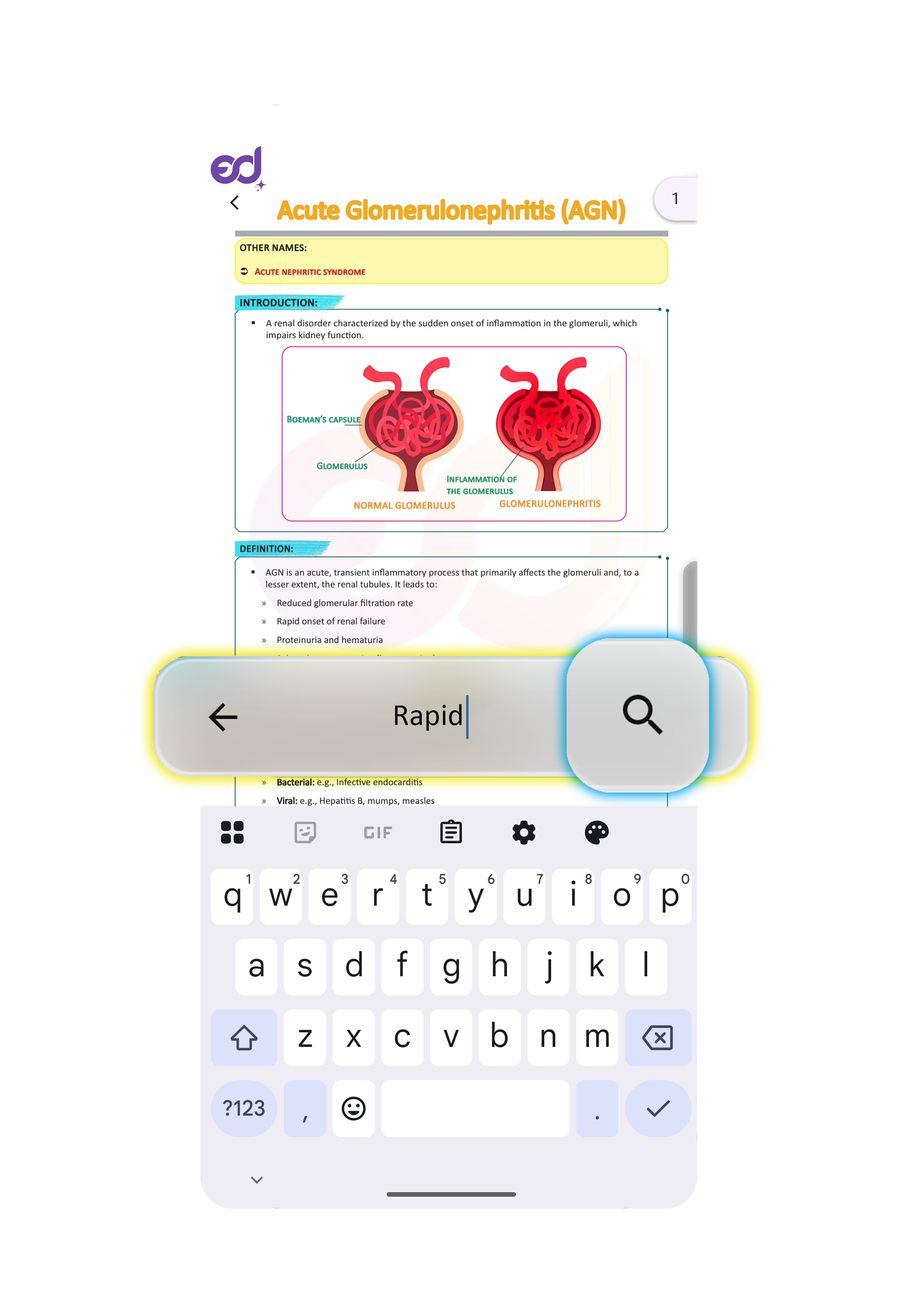
Enter Search Term
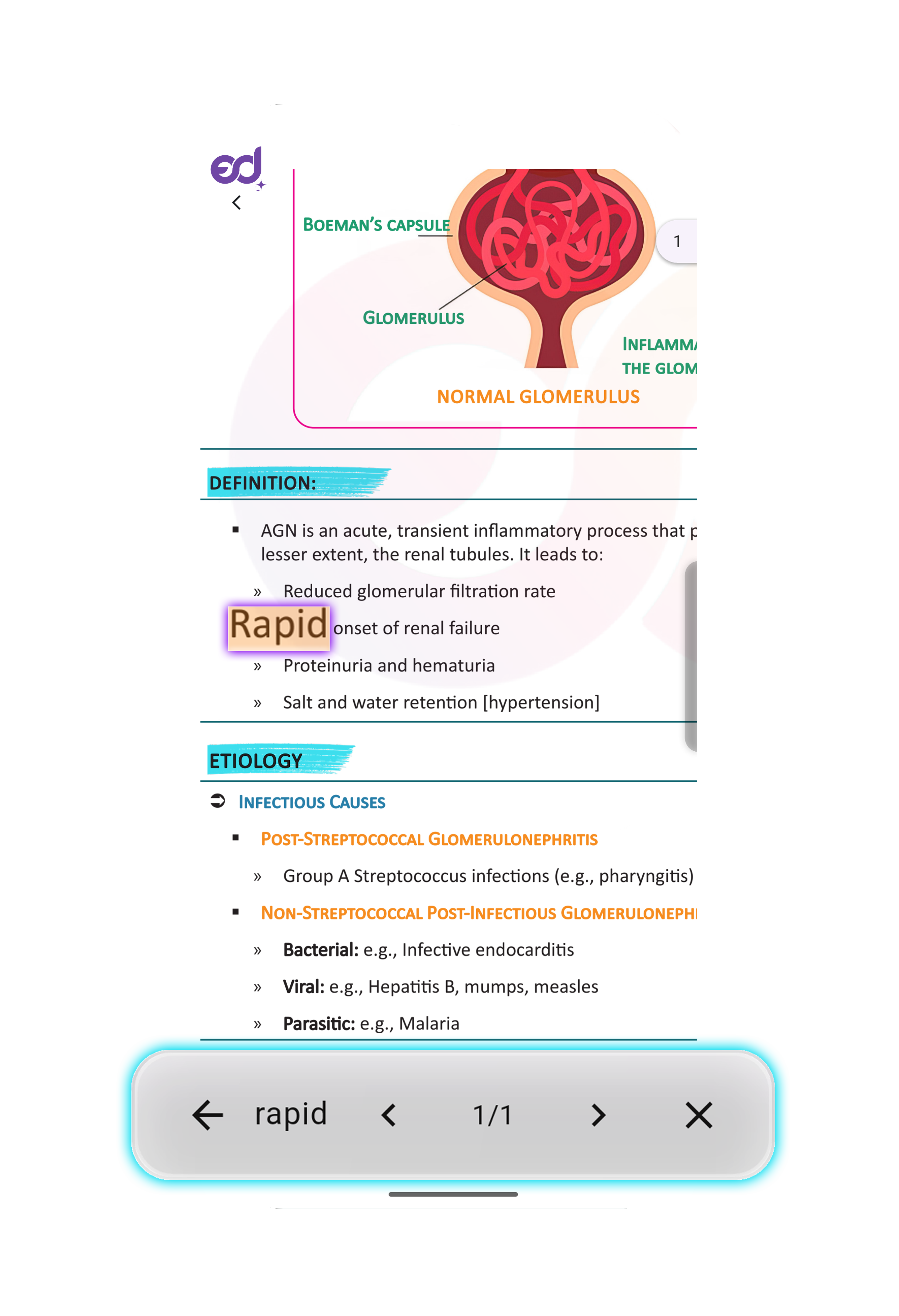
Search Results
Hide the PDF Options Bar
Just tap on the PDF Reader's screen to hide the option bar.
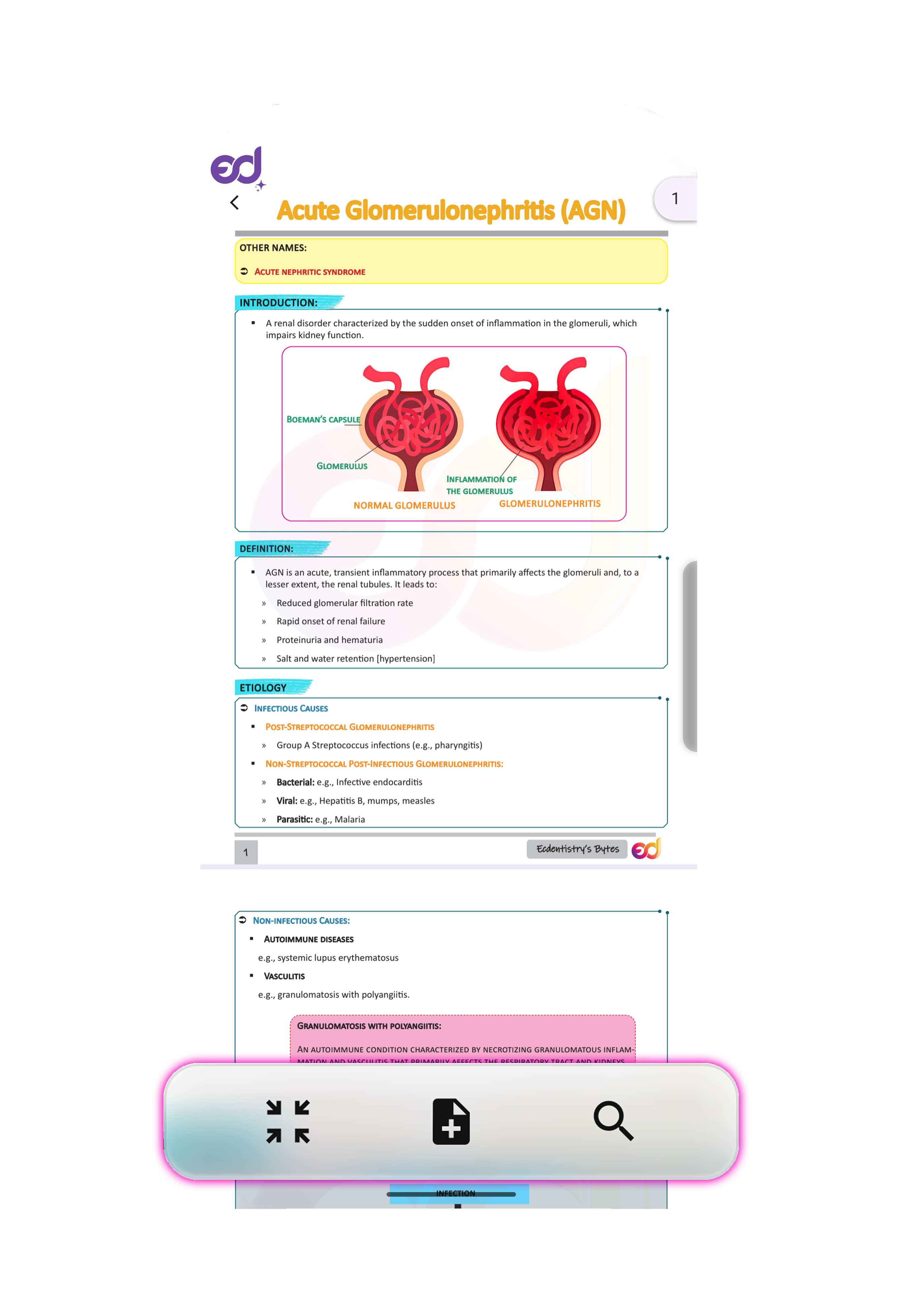
PDF Navigation Bar
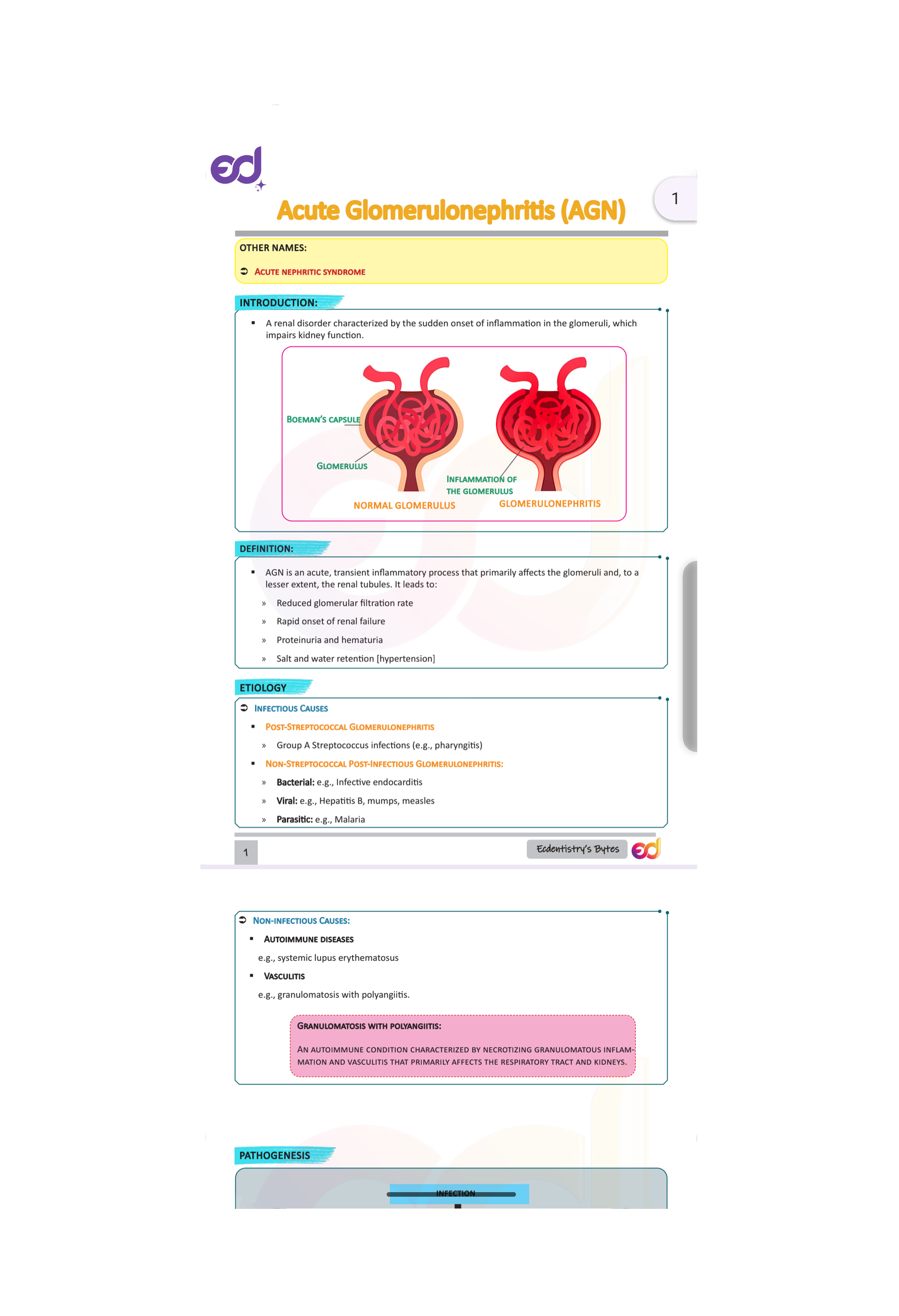
Navigation Bar Hidden
Exit & Update Status
When leaving the viewer, pick a status: Completed • Started • Not Started • Continue. Your progress auto-syncs to the dashboard.
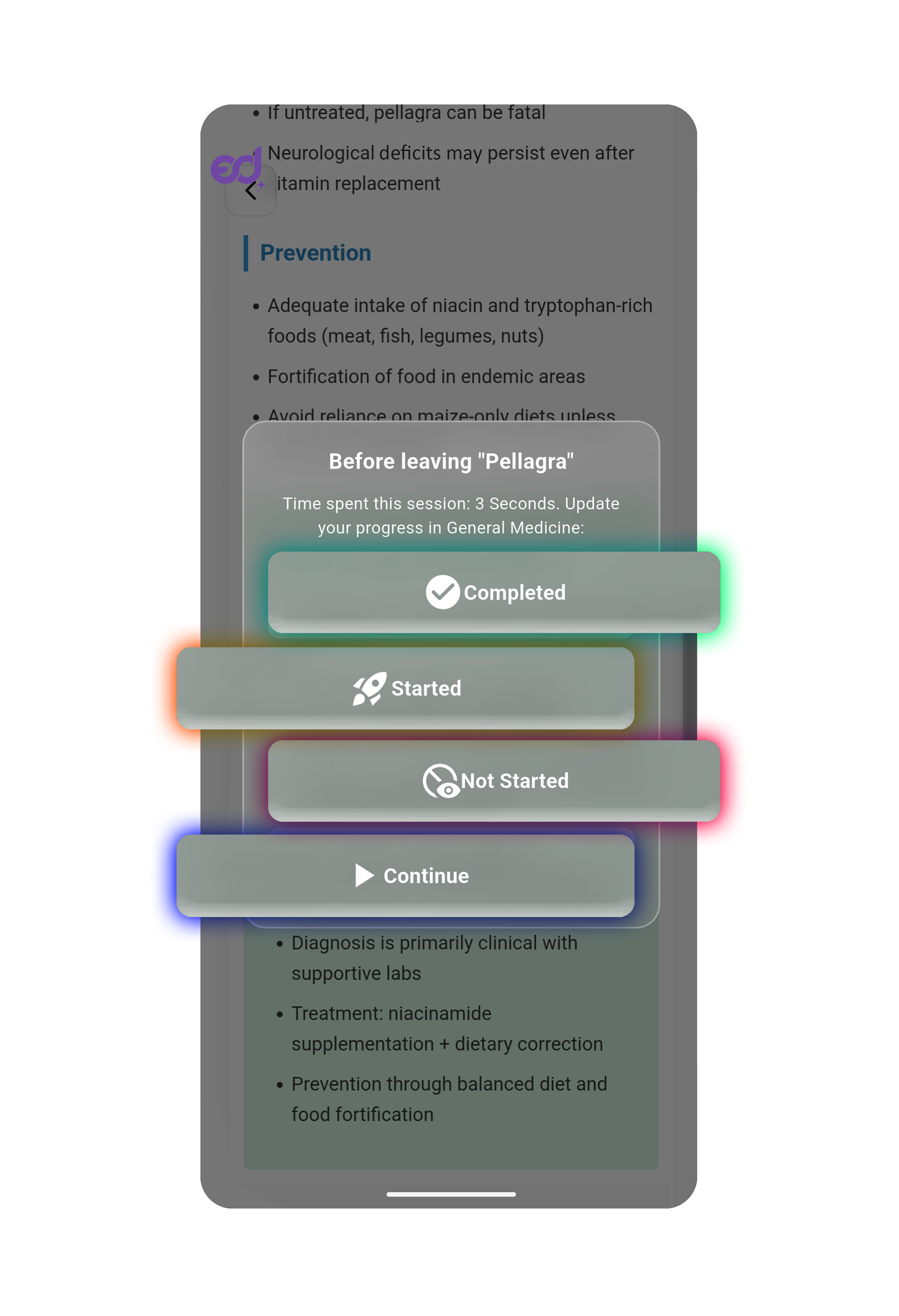
Exit Options